
Adding Teammates
Add someone to your website so they can help edit content or manage its settings.
Before you start
- You must be the website owner or an Admin teammate to add someone.
- The person you add needs an active account on the platform. Ask them to create one first if they haven't already.
Add a teammate
- Sign in, open Websites, and select the website you want to share.
- Click Teammates under Admin in the left menu.
- Click the blue Add Teammate button.
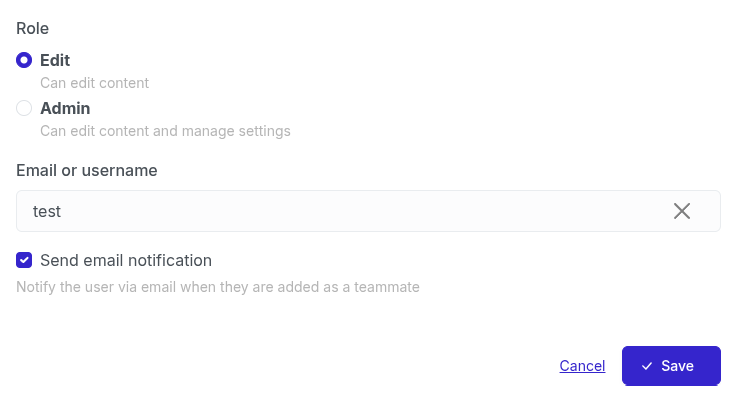
- Choose a role: Edit lets the person edit website content; Admin also lets them manage settings and teammates.
- In Email or username, type at least two characters of their name, username, or email address. Click their account in the search results to select it. Typing an email address without selecting an account does not add a teammate.
- Leave Send email notification checked if you want the person to receive an email about their new access. Uncheck it if you don't.
- Click the blue Save button.
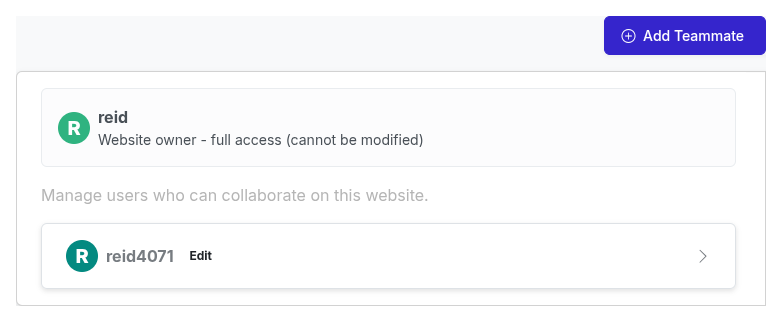
You'll return to the Teammates page. The person appears in the list with the role you chose and can access the website.
Troubleshooting
I can't find the person in the search results
Check the spelling of their name, username, or email. Only active accounts that aren't already teammates appear in the search results. If they don't have an account yet, ask them to create one and then try again.
I can't open Teammates
Only the website owner and Admin teammates can manage access. Ask one of them to add the person for you.
Related
- Editing Content — What a teammate with editing access can work on