
Managing Form Submissions
When visitors submit forms on your website, their responses are saved in the dashboard. This guide explains how to view submissions, filter them, and manage user registrations.
Viewing Submissions
- Go to the dashboard and open your website
- Click Forms in the website navigation
- You'll see a table of all submissions, newest first
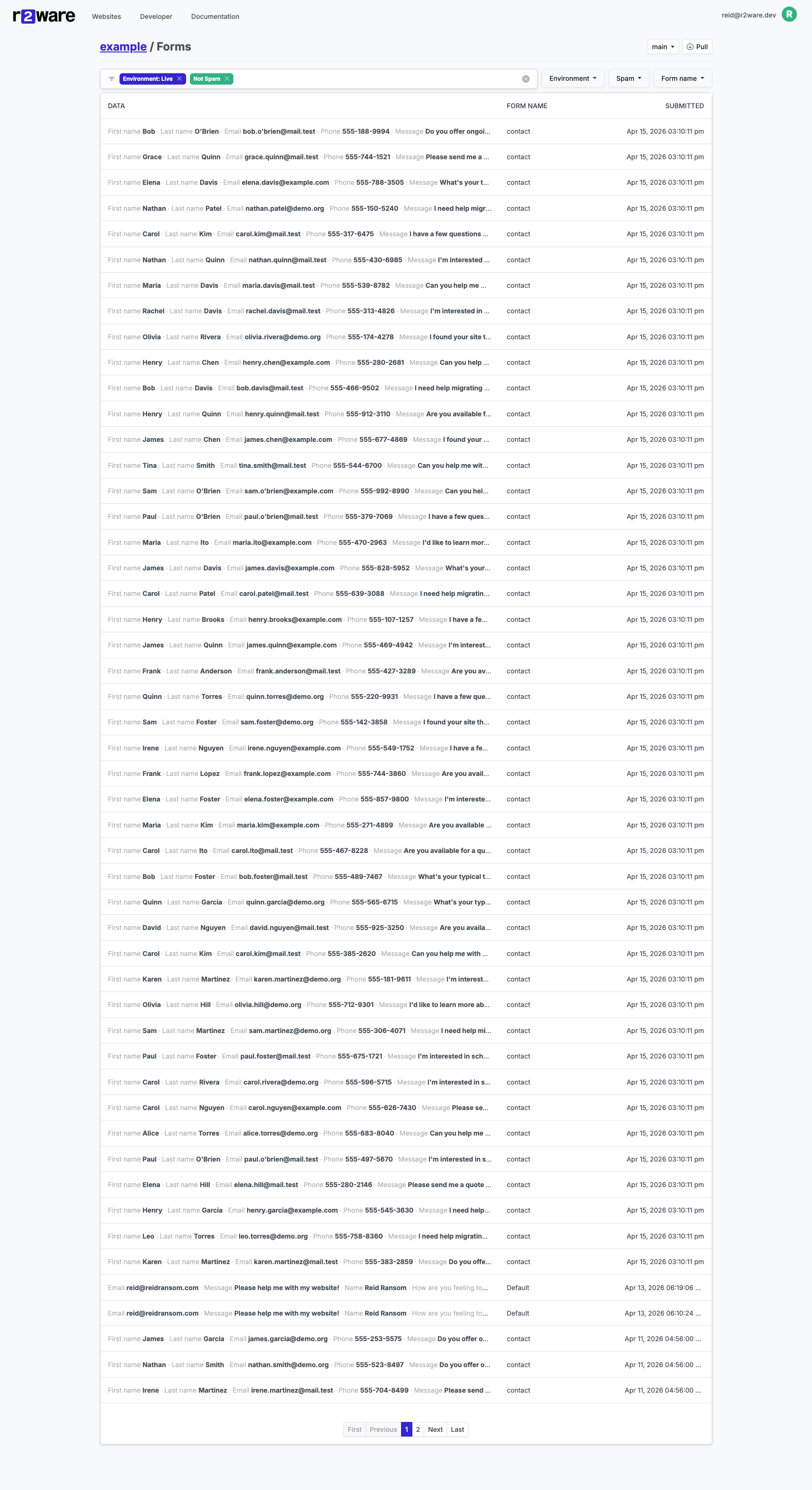
Each row shows a preview of the submitted data, the form name, and the submission date. Submissions from your staging environment show a Sandbox badge. Submissions flagged as spam show a Spam badge.
Click any row to see its full details in a popup.
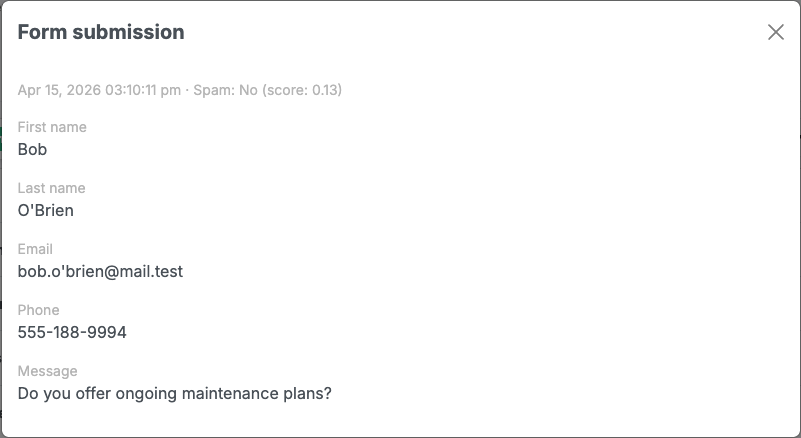
The detail popup shows the submission date, spam detection result, and all submitted field values.
You can also Export submissions to CSV using the Export button at the top right.
Filtering Submissions
Three filter dropdowns appear above the table:
By Environment
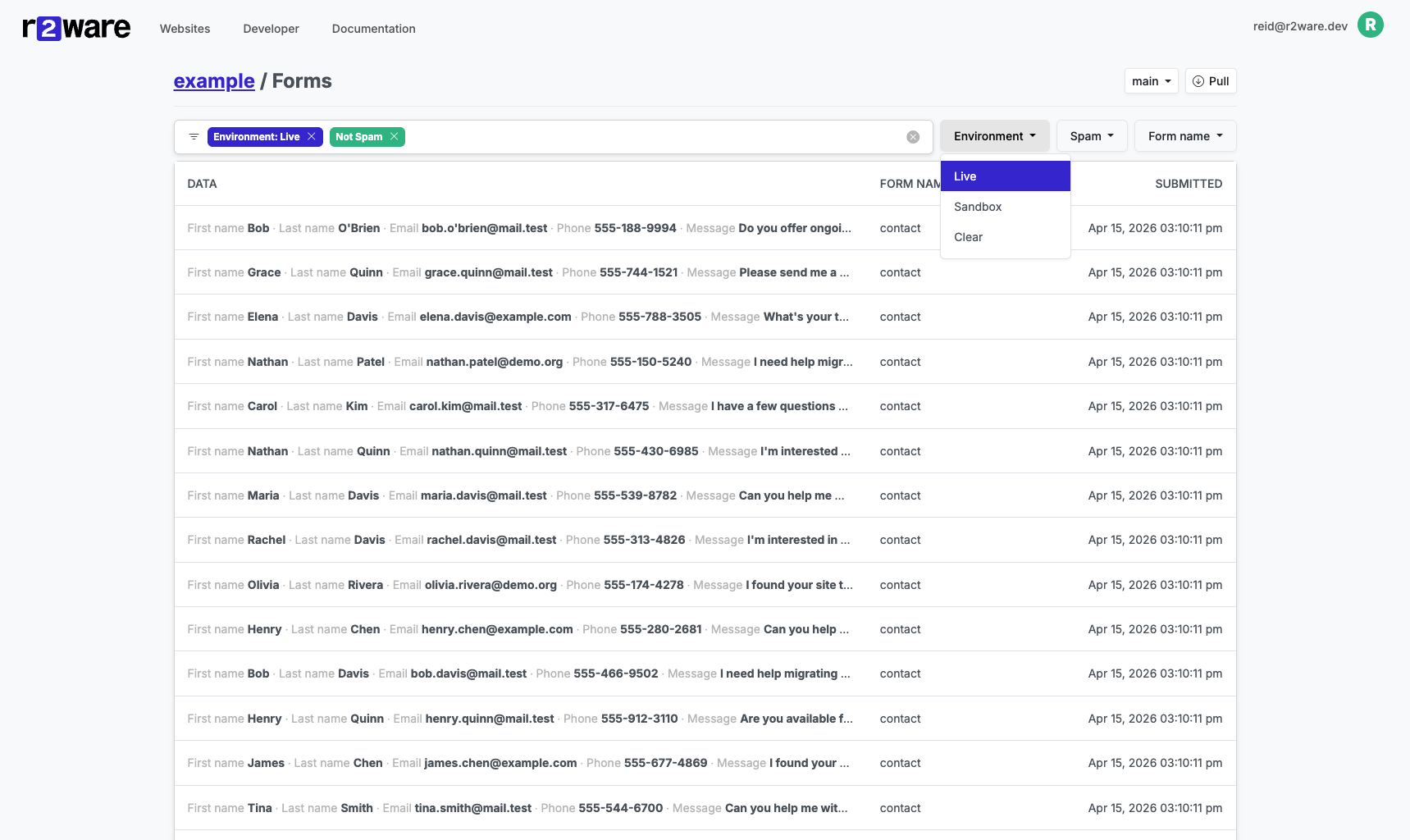
Click Environment to filter by:
- Live — Real submissions from your published website
- Sandbox — Test submissions from preview builds
- Clear — Show all submissions
By Spam
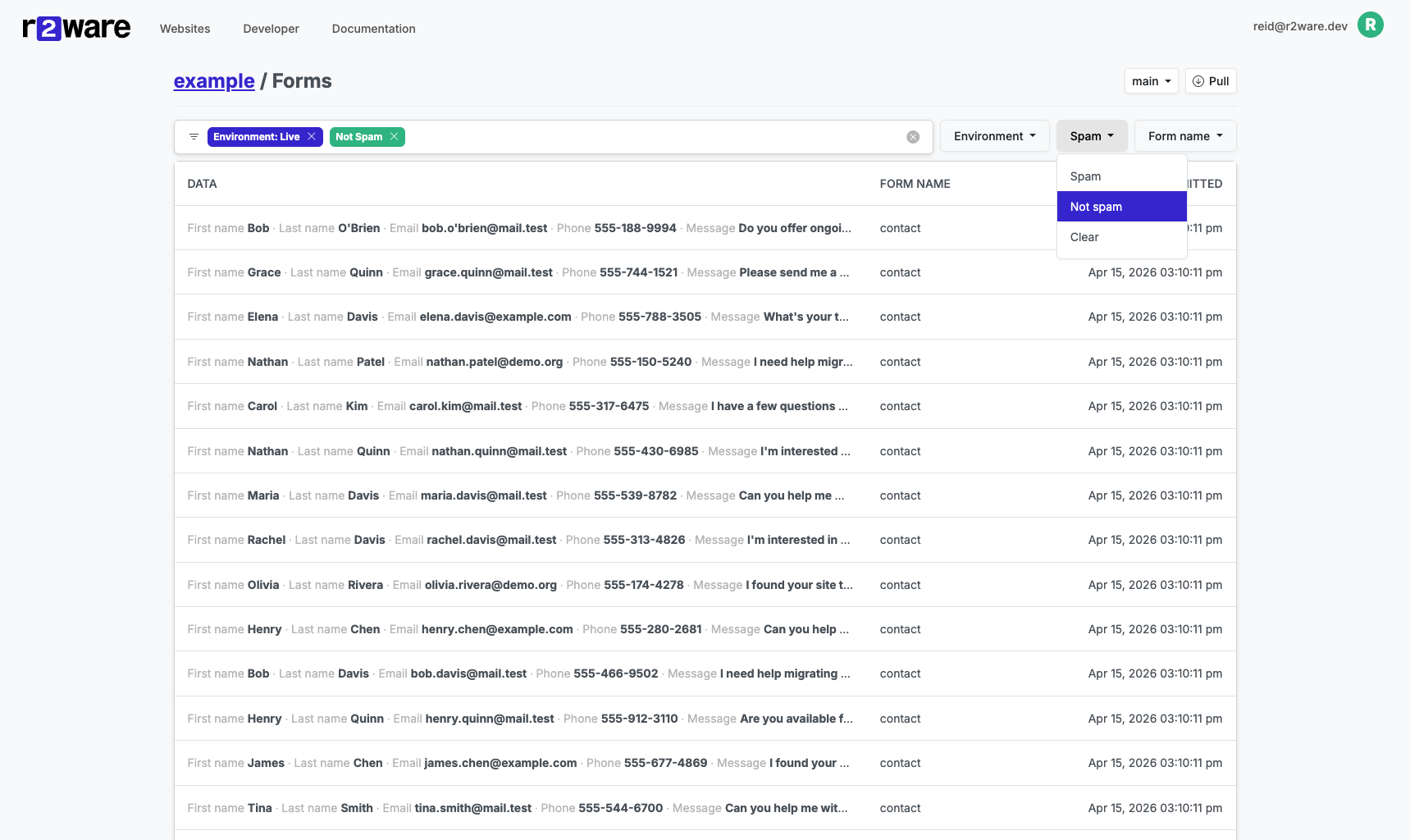
Click Spam to filter by spam detection result:
- Spam — Submissions flagged as spam by the automated scanner
- Not spam — Submissions that passed the spam filter
- Clear — Show all submissions
The default view shows only non-spam submissions. Switch to Clear to see everything.
By Form Name
If your website has multiple forms (e.g., "contact" and "signup"), click Form name to show only submissions from a specific form.
Active filters appear as badges above the table. Click the × on a badge to remove that filter.
Spam Protection
Forms are protected by several layers of security to reduce spam and phishing submissions:
- Honeypot field — A hidden field that legitimate visitors never see or fill in; bots that blindly populate all fields trigger it and are flagged immediately. This requires the site developer to add a field with the
_hp_prefix to each form — see Form Submissions (Website Dev). - CrowdSec — Network-level protection blocks known malicious IP addresses before they can reach your forms.
- AI spam scanner — Submissions that pass the above checks are automatically scanned for spam content. Flagged submissions are quarantined and shown separately under the Spam filter.
CrowdSec and the AI scanner run automatically with no setup. The honeypot requires a one-time addition to the form HTML by the site developer.
Email Notifications
You'll receive an email notification for each new form submission. Each email includes the submitted field values and a link to view all submissions in the dashboard.
Spam submissions trigger a brief alert email instead of the full field data. Honeypot-detected bots receive no notification at all.
Sandbox submissions do not trigger email notifications.
Managing Registrations
If your website uses user registration forms, submissions that are part of a registration workflow show a Status column:
- Pending email confirmation — The visitor hasn't confirmed their email yet
- Pending admin review — Waiting for you to approve or reject
- Registered — The user account has been created
- Approved — Approved but account creation is still processing
- Rejected — You declined the registration
Approving a Registration
- Click on a submission with "Pending admin review" status
- Review the submitted information
- Click the Approve button
The platform will:
- Create a user account with the configured role
- Send the user a welcome email with a sign-in link
Rejecting a Registration
- Click on a submission with "Pending admin review" status
- Review the submitted information
- Click the Reject button
The user will receive an email letting them know their application was not approved.
Note: Once a submission is approved or rejected, the action cannot be undone.
Troubleshooting
I'm not receiving email notifications
- Check your spam folder
- Verify the contact email is set correctly in your website's
_config.yml - Sandbox submissions do not trigger email notifications
A registration is stuck on "Pending email confirmation"
The visitor may not have received or clicked the confirmation email. Confirmation links expire after 24 hours — the visitor will need to resubmit the form.
I don't see the Approve/Reject buttons
These buttons only appear for submissions that:
- Are linked to a form with
admin_approvalenabled in the website configuration - Have "Pending admin review" status
- Are viewed by a website owner or platform admin
Related
- Form Submissions (Website Dev) — How to add forms to your website
- User Registration (Website Dev) — How to configure registration workflows